SSH Keys
The following page serves the user in creating an SSH Keypair for use with various HyperCloud configurations.
UNIX VMs
If deploying UNIX VMs, the default behavior is to disable password authentication and only allow SSH key authentication. Before creation of such a VM, a public SSH key will need to be generated and pasted under the Authentication sub-section of the HyperCloud Settings.
Generate a public SSH key from the command line
From the local machine's terminal, use the following command to create a private (id_rsa) and public (id_rsa.pub) key pairing:
Where -t rsa declares the RSA encryption algorithm and -b 4096 declares the encryption bit sizing.
You will be prompted to choose where to save the files and if you would like to include a passphrase. Just press enter to bypass these inputs.
Retrieve the public key and enter into your HyperCloud user settings
Once the command has run and returned to input, navigate to the file, .ssh/id_rsa.pub and open it in your text editor of choice.
Navigate to your user settings page in HyperCloud, and click on the Auth tab.
Copy the public key to paste into the associated attribute field:
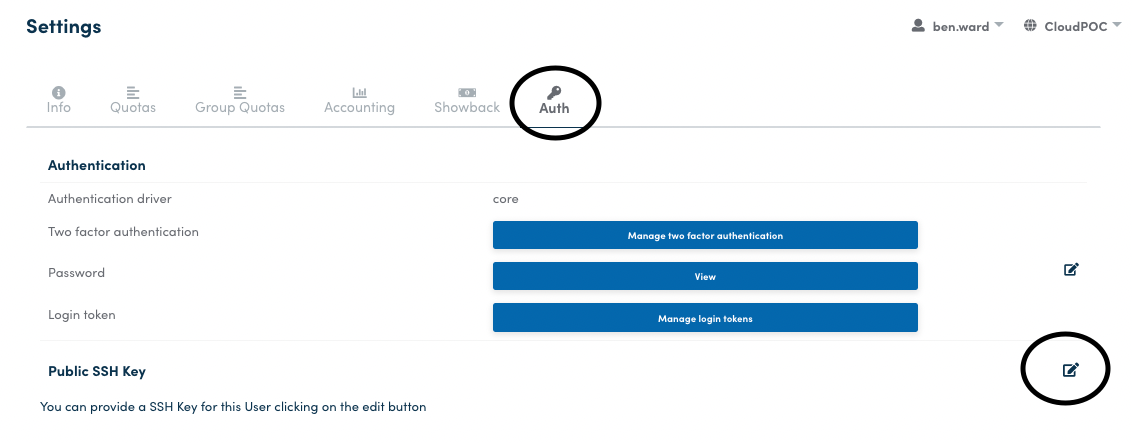
This is important to configure before beginning to instantiate VMs, etc. because these key pairs are what allow a user to log into a VM. The ssh key is injected into the template when HyperCloud runs through its steps setting up the machine.
Windows
You can generate an SSH key on Windows 10 or later using the ssh-keygen command.
- Open a Powershell terminal window
- Run
ssh-keygen -b 4096 - Enter the passphrase if desired, or hit Enter to continue without a passphrase
- To get the contents of your public key, run
get-contentagainst the full path of the newly created public key
PS C:\Users\Administrator> ssh-keygen -b 4096
Generating public/private rsa key pair.
Enter file in which to save the key (C:\Users\Administrator/.ssh/id_rsa):
Created directory 'C:\Users\Administrator/.ssh'.
Enter passphrase (empty for no passphrase):
Enter same passphrase again:
Your identification has been saved in C:\Users\Administrator/.ssh/id_rsa.
Your public key has been saved in C:\Users\Administrator/.ssh/id_rsa.pub.
The key fingerprint is:
SHA256:Kmos01FGD1/vYliJRwOczRQtoVwOlnNUk1MLgxU0p1M administrator@company
The key's randomart image is:
+---[RSA 4096]----+
|     .+O*OX+E    |
|    oo==X +O .   |
|* = o.o=ooo=   . |
|+O.o o o..o.     |
|   o   +S.       |
|  .   ..o .      |
| o .. .. .       |
|o +. .           |
| +.              |
+----[SHA256]-----+
HyperShell
If HyperShell is installed, the command Add-CloudSSHKey -keyName <keypair_name> -Comment <user_comment> can be used to generate an SSH Keypair and Get-CloudSSHKey | select index,type,fingerprint,comment will display list of system's SSH Keys with associated data.
Dashboard SSH Keys
The following tutorial will serve to instruct the user on where and how to store SSH keys on the Glasshouse dashboard to manage the dashboard instance itself via SSH. This will allow the user to manage the cluster via the CLI and SSH from the dashboard into the hosts.
This SSH session is not used to access VMs on the system, this is only for dashboard access.
Advanced - Cluster-Control Facts
Updating Cluster Control Facts can lead to unexpected problems in your installation! Take care when making changes and use the UI instead if you are not sure.
The Cluster-Control Facts directory houses information vital for the system's nodes to communicate with one another; as well as, a few items to help the user navigate the infrastructure; one of which is the cluster dashboard's authorized_keys file. This is the file that stores these values, and is read by the Cloud Management WebGUI referenced above and it resides at: /var/run/cluster-control/facts/authorized_keys.
After starting an SSH session into the Dashboard, open the file with VI and edit the contents to include the required SSH keys, or simply append to the end of the file with echo <ssh_key> >> /var/run/cluster-control/facts/authorized_keys.
Oneadmin User Group
The members of the oneadmin user group, who configure their SSH keys, are granted root SSH access to the HyperCloud cluster Nodes and the Dashboard automatically.
It may take up to 6 minutes for a oneadmin user SSH Key configuration update to propagate through the HyperCloud Cluster. The SSH access to their VMs is not affected.